
The video and codec settings menu button (3) opens a settings window which contains video size, quality and codec settings.
Below we will consider each menu item separately.
1.3.3.1. Resolution and FPS
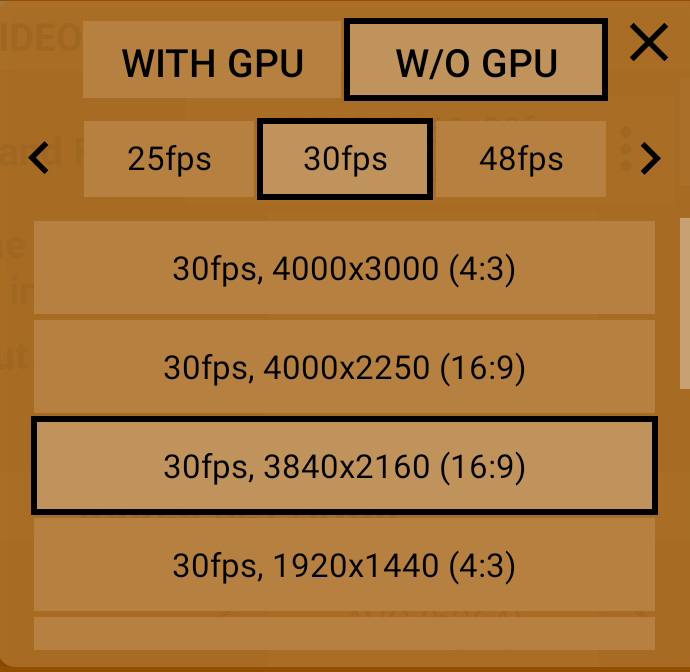
| Taping an area with resolution and frame rate values opens a separate menu which is divided into two items: With GPU and Without GPU. Each item stores its own frame rates and video sizes. |
There are three types of capture sessions based on frame rates in Android:
- Standard includes all frame rates up to and including 30 fps.
- High frame rate session is capturing at speeds above 30 fps up to and including 60 fps.
- High speed recording session is shooting above 60 fps, more often 120, 240, 480 and 960. These frequencies are always marked in red because their performance often depends on combinations of parameters that cannot be predicted. Performance can be affected by exposure mode (auto or manual).
Each type has its own structure and differs from the others by the mechanism of work. Camera2 API often contains information about the standard type and high-speed recording. And almost never about the possibility of recording with high frame rate. That is, information about such frequencies as 48, 50 and 60 fps is almost never available.
We add these frequencies separately, after test users have checked and verified that they work. If such frequencies are not available on your device, it means that your smartphone has not been tested or your device cannot activate recording at higher frame rates.
Also, problems can occur with high-speed recording. Each manufacturer pays as much attention to Camera2 API support as it sees fit, and often in the amount required for the native application to work. Support for third-party applications is most often not in the manufacturers' interests. This is not a complaint about life, it is a bitter truth that we feel it is right to mention.
Frame rates may be marked in red. This means that the manufacturer has not declared support for that frequency, but it is present in the application and you can try to use it. We do not guarantee that red frequencies will work correctly.
If it turns out that the frequency, even if it is red, works well, it will still remain red, and its color in this case will not change until the manufacturer itself has not declared support for it.
Smartphones from Huawei (Honor) should be mentioned separately. Almost all devices (except last) of this company, even with the specified support, have problems with frequencies 24 and 25 fps. Therefore, on these devices we recommend to use a frequency of 30 fps.
The same problem is found on OnePlus smartphones of recent generations. The difference is that the manufacturer does not specify support for these frequencies, and they definitely do not work.
When you select any frame rate, a list of available sizes for that frame rate appears at the bottom. The size may also be marked in red. More often than not, this is because the frame rate itself is marked red, or because the given size has some kind of limitation, such as only working in autoexposure mode.
We once again draw your attention to the fact that the frequencies and sizes in "With GPU" and "Without GPU" can be very different, so there is no possibility in the application to easily and simply switch to GPU support or turn it off.
To select a size, you have to select all three options. First "With GPU" or "Without GPU", then the desired frame rate and then the desired size. Only after selecting the size will the application apply the selected settings, the rate and size menu will close automatically, returning you to the video and codec settings menu.
All available sizes are taken from the Camera2 API. It is possible to add sizes to the "With GPU" tab forcibly. In the "Without GPU" tab dimensions cannot be added, codec works only with dimensions defined in Camera2 API. The only exception is one manufacturer - OnePlus, on some devices there is an option to specify an arbitrary video size.
It is also worth mentioning that many users perceive frame rates separately from bitrate. But we draw attention to the fact that the quality of a single frame depends on the selected frame rate. UHD picture quality at a bitrate of 160 Mbps and 24 frames per second will be many times higher than at a frame rate of 60 fps. Because in the first case we fit 24 frames into 160 megabits (20 megabytes), and in the second case 60. No matter how you spin it, 20/24(0.83 MB per frame) is more than 20/60(0.33 MB frame).
1.3.3.1.1. With GPU
This item contains sizes and frame rates, which are specified in Camera2 API parameters as supported, as well as those frequencies and sizes, which were forcedly added. Due to the fact that we have no information on the actual performance of the GPU on each individual device, it is not possible to cross out the sizes and speeds that are not supported by the GPU. Therefore, we have to keep in mind that each device has its own performance limit. And this leads to the fact that some sizes may not work.
There are situations when the size and frame rate only work through the GPU, even though the size is listed as supported. This situation is found on Google Pixel 4 devices, 60 fps work only with GPU support.
At any given time, you can see three frame rates on the menu. If there are more than three speeds available on the device, arrows appear on the sides of the speed bar, which you can use to switch the speed list to the next (previous) three speeds.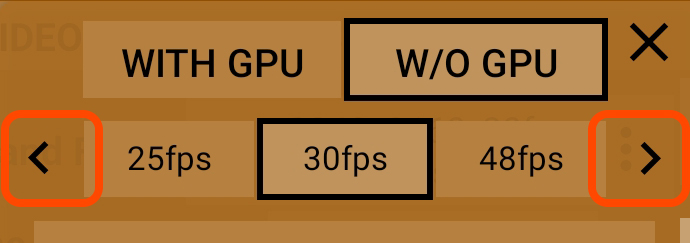
Warning. Choosing to process information through the GPU changes the other settings available. For example, when you enable GPU, you lose the ability to record video in 10 bit mode. And vice versa, you have the opportunity to crop the frame, desqueeze video and apply some filters.
Also, when you enable GPU processing, the color and contrast of the recorded material may change. This is due to the fact that the GPU does not give information to the codec that it receives if the signal comes directly from the sensor.
When recording with signal processing through the GPU, the load on the device increases, which, in turn, may affect the stability of the recording.
1.3.3.1.2. Without GPU
This item contains the sizes and frame rates, which are specified in the Camera2 API parameters as supported, as well as those frequencies and sizes, which were forcedly added.
As much as we don't want everything to work as specified by the manufacturer, there are situations when the sizes specified in the Camera2 API parameters do not work. In modern devices this problem is less and less common, but we must keep in mind that it is possible.
There are three frame rates visible in the menu at any given time. If there are more than three speeds available on your device, arrows appear on the sides of the speed line, using which you can switch the speed list to the next (previous) three speeds.
Important: If your device supports 10 bit recording, only when recording without GPU will this bit rate be available.
When shooting without signal processing through the GPU, the load on the device is reduced and the recording should be more stable.
1.3.3.2. Section "Codec Settings"
In this section we tried to collect those settings that somehow can affect the operation of the codec.
1.3.3.2.1. Codec
There is not much of a choice here: AVC (h264) or HEVC (h265).Only in h265 it is possible to record 10-bit material. Therefore, the color depth item is blocked when h264 is selected.
1.3.3.2.2. h264 profile
This option allows you to select the highest possible profile for the h264 codec or leave it up to your system (the device system, not the application). For h265 there is no such option, it always encodes in the highest available profile.
1.3.3.2.3. Bitrate (quality)
This option allows you to select a target bitrate (desired, approximate but not guaranteed). Bitrate marked in red means that the manufacturer has specified a maximum bitrate limit below this one.
On devices with a processor up to Snapdragon 855, you can select a "red" bitrate and it will work if the system expects such a bitrate to work, and will generate an error if the system prohibits such a bitrate. The maximum available bitrate can only be determined by a fitting.
Starting with Snapdragon 855, the bitrate is limited to 160 Mb/s, and regardless of the selected bitrate in the application, the system will set the maximum 160 Mb/s.
Samsung devices on Exynos processors, starting with the S10 work with very high bitrates, even 500 MB/s (maximum in the application) for them is not the limit. But the stability of the recording at such a bitrate is another matter.
Devices with processors from other companies (Kirin, MediaTek), unfortunately, have the opposite problem - the specified available bitrates may not work. It is worth noting here that on some Huawei devices it is possible to get a very high bitrate if keyframes (1.3.3.2.7. I-frames) are set as often as possible.
It is important to keep in mind that the bitrate of the recorded file strongly depends on the scene being shot. The system decides what bitrate to keep, and there is no way to influence it.
Keep in mind when setting the bitrate that it affects the size of the recorded file. Higher bitrate means larger file size per second.
Keep in mind when setting the bitrate that this bitrate will give much lower quality results than the same bitrate selected in the nonlinear editing program. Keep in mind that in this case the codec works live without being able to think and calculate for a long time, so the bitrate selected for recording should be several times higher than the bitrate used to encode movies, for example.
It is also worth mentioning that many users perceive bitrate separately from frame rate. But we draw attention to the fact that the quality of a single frame depends on the selected frame rate as well. UHD picture quality at the bitrate of 160 Mbps and 24 frames per second will be many times higher than at the frame rate of 60 fps. Because in the first case we fit 24 frames into 160 megabits (20 megabytes), and in the second case 60. No matter how you spin it, 20/24(0.83 MB) is bigger than 20/60(0.33 MB).
1.3.3.2.4. Bitrate mode
Android offers three bitrate modes: variable, constant, constant quality. The last mode is not available in normal resolution on mobile android devices, so this setting is not in the app.
Variable bitrate means that the system tries to allocate a different bitrate for each frame depending on the incoming data.
Constant bitrate means that the system tries to keep the bitrate so that each frame gets roughly the same amount of bitrate. Note the word "tries" here. You will always see a variable bitrate in the recorded file in MediaInfo. Some devices are not friendly with constant bitrate (Huawei), and some, on the contrary, are more stable, with fewer dropped frames (Sony).
1.3.3.2.5. Color depth
This item allows you to select the bit depth (color depth). If your device supports 10 bit recording (2.3. 10 bit), this item will appear in the menu (i.e., if you see this item, your device is writing 10 bit).
This menu item may be locked. This means that the selected settings do not allow your device to record at 10 bit color depth.
Prerequisites to activate this item: the HEVC codec (h265), the GPU is disabled (1.3.3.1.2. Without GPU) in the video settings menu, a certain resolution (on Sony smartphones, for example, not more than 3840*2160), a certain frame rate (on Sony Mark I smartphones not more than 30 fps). When the above conditions are present, the item becomes active and you have the option to select recording with a color depth of 10 bits.
1.3.3.2.6. I-frames
If we do not go too deep into the codec's information compression algorithms, its work can be represented as a sequence of reference (key, I) frames and a group of secondary (more often consisting of P, less often P and B, we are talking about Android) frames. The key frame is the frame which contains the maximum amount of information about the image; it is a full resolution in full size. The secondary frame is a slice of the key frame. The secondary frame contains only that part of the image which differs from the image in the key frame. If you have a static video with a couple of swinging tree branches, the secondary frames will contain only those branches, and everything else will be taken from the key frame.
You could logically assume that the more I-frames you set, the better quality, because every frame will be whole, and the codec will not try to guess motion direction and bring its artifacts into the image. But in reality we have such an important parameter as bitrate.
When we select keyframe "each", this bitrate is splitted by the number of frames per second. For example, we have a bitrate of 100Mb/s and 25fps, each keyframe have 100/25=4Mb=0.5MB per frame. The advantage of this choice is that the editing program does not have to strain to decode the intermediate frames. On the other hand, this is what the editing codecs are for, and transcoding the recorded material into which, solves the issue with the load.
When we choose a keyframe every two seconds, the intermediate frames require less bitrate for the same level of quality because, as we found out above, they contain only chunks that are different from the keyframe. As a result, more bitrate can be allocated to the keyframe, making it of higher quality. The codec distributes the bitrate independently. This choice (rare keyframe) may cause problems with dynamic scenes, if codec incorrectly detects direction of movement, compression artifacts may appear. If codec incorrectly defined bitrate for keyframes, they can "pulsate" when you notice quality degradation on keyframe.
This setting may not work accurately at high load. Keyframes can be set at the codec's discretion. If resources are scarce, keyframes are automatically set less frequently.
On some devices frequent keyframes may cause uncontrolled bitrate increases. Until recently, on Huawei devices, setting the bitrate to 50Mbps and I-frames to "every" resulted in bitrate increases of up to 300Mbps or higher. With the new updates, Huawei has limited this capability.
Given all of the above, it is up to the user to choose the appropriate value for this setting.
1.3.3.3. Section "Metadata Settings"
This section contains settings and modes for implementing which you want to overwrite or correct the metadata of an MP4 file. All settings in this section require you to enable the "Metadata" option.
1.3.3.3.1. Metadata
This setting is about adding and correcting metadata. When this setting is activated the information about the settings selected during recording is added to the video file. You can easily read this data with MediaInfo.
At the moment the metadata includes the following information: device brand and model, OS version, frame rate, color depth, bit rate, white balance, temperature (if selected), gamut, gamma curve, dot density, exposure type, ISO value and shutter speed (in manual exposure mode), GPU usage, GPU gamma curve (if GPU was used). This list will be added to as far as possible.
About metadata correction. We are trying to bring the metadata to a normal form, so that they can be determined equal by different players. This includes Color space, Gamma curve, and Color range. Depending on the selected settings, the metadata is adjusted for them. If HLG curve is selected in gamma curves, it will be specified in the metadata, and not the curve that codec enters by default based on system settings. This makes it possible to use different standardized gamma curves and color spaces correctly. The Android API provides these manipulations, and in theory everything can be done without manipulating metadata. But in reality, device manufacturers are not very keen on making devices work according to the Android API documentation. As a result, all the fine-tuning often doesn't work, with very few exceptions.
Today metadata correction only works with the h265 codec. But we will definitely not stop there and will try to implement it for the h264 codec.
Activating this menu item opens the rest of the settings of this section.
1.3.3.3.2. Target frame rate (no audio in MP4)
This item allows you to recalculate the frame rate after recording. It can be used both to decrease the frame rate and to increase it.
Once again, please note that it does not affect the recording speed, it affects the playback speed. A device that records at a maximum of 30 fps in this application will not suddenly start recording at 60 fps.
Activating this item deactivates the "Constant frames per second mode" item, because "Target Rate" always tries to bring the file to a constant frame rate.
1.3.3.3.3. Constant FPS mode
Almost all more or less advanced users have at least once heard about stable (constant) frames per second. Many of them are very disappointed in Android OS when they see floating FPS in MediaInfo.
We created this setting to do something to help solve this issue for users in tin foil hats.
We can assume that the device can't cope and starts to lower the frame rate. But these are fairy tales from the world of computer games.
The camera sensor works at a constant frequency that is close to perfect. The problem arises at the system level, when it fails to cope with the processing of the frame, not having time to process and encode the frame in the allotted time.
H264 and h265 codecs were created with a view to be used in web broadcasts, one of the subspecies of this is broadcasting of the games, cyber-competitions. As we know floating FPS accompanies the gaming industry all the time, reviewers of smartphones are oriented to the stability of FPS. Codecs h264 and h265 are able to work with any frequency, with any change in it, to record what was actually there. This is their feature, not a disadvantage.
Here we have to turn our minds upside down and clarify how these codecs work with fps. We are all used to the concept of "frames per second", but when it comes to these codecs we should switch to the opposite concept of the same essence - "frame duration". h264 and h265 work with frame duration. Floating FPS is nothing but different frame durations. Everyone's favorite application MediaInfo translates frame duration into fps. So we see a minimum rate, a maximum rate and an average rate. These are the very metrics that advanced users are so afraid of.
To MediaInfo have target frame rate of 30 fps, but minimum rate 15 fps, you only need to drop one frame at any place in the video. In the place where the system has lost a frame, the duration of the previous frame is doubled. If you had the frame duration equal to 30 fps, one frame droped out and the duration of the previous one doubled, so the frame rate of the previous frame was recalculated to 15 fps. Now you see a minimum value of 15 fps in MediaInfo.
This setting tries to arrange frames according to the timecode of the target frequency. I.e. the duration of the frame has deviated by a small value, it is assigned a new time and a new duration so that the frame rate is not violated.
Exactly the same happens when importing a file to the timeline of the Blackmagic Davinci Resolve video editor program. The program automatically arranges frames according to the timecode of the target frequency of the project.
If the video contains frames with a duration 20% higher than the target frequency, it is automatically considered as a frame dropout, and the duration is increased by 2 times. As a result, there is no way to see a stable frame rate in MediaInfo.
When you activate this setting on some smartphones, you can observe a mismatch of video and audio. This occurs due to the fact that the smartphone does not keep the selected frequency, overestimates it or underestimates it by 0.5-1 fps. On Xiaomi and OnePlus smartphones, it was noticed that when selecting 60 fps, the device holds a frequency of 61 fps. On Huawei smartphones, it has been noticed that when selecting 24 fps, the device holds at 24.8 fps. Because of this, over time there is a difference between the target frequency and the real one. The sound is recorded without distortions, corrections and recalculations, with the real (target) speed.
When sound is recorded at 24.8 fps, and the setting puts frames at 24 fps, at the end the sound is likely to lag behind the video (the speed will run ahead).
About the above described problem warns a special message under this menu item. The message disappears if the "Target Frequency" setting is enabled or sound recording is disabled.
1.3.3.3.4. Timecode
A timecode which is inserted as a separate track into an MP4 file. Helps to synchronize files automatically by timeline in one click.
Actual solution works solely with the time of the phone and does not receive signals from any external synchronization devices.
By far the most obvious use is for overlapping recording. Previously, all the individual pieces had to be adjusted manually. Now a non-linear editing program will do it for you, based on the timecode specified in the files. The second variant of application is the synchronization of video from different devices. Yes, in this case, the accuracy of the timecode will depend on the coincidence of time on the selected devices.
It is worth paying attention to the constant frame rate mode. If this mode is enabled, but the timecode is guided by the number of recorded and dropped frames. If this mode is disabled, the timecode tries to adjust to the floating frame rate by reading the system time.
1.3.3.3.5. Delete HDR metadata
One of the most popular video editors Premiere Pro has a problem with HDR10 metadata (this is not really a problem, more of a standards compliance, because working with HDR video requires an HDR monitor). It tries to work with such files as HDR files, as a result increasing brightness by 10 times. We solved this problem by editing the metadata so that Premiere Pro understands the file as just a 10-bit file and does not apply any gamma conversion to it.
1.3.3.4. Section «GPU settings»
This section contains settings that become available only when the GPU is used for signal processing (1.3.3.1.1. With GPU).
1.3.3.4.1. Crop to
With this setting you can select the desired aspect ratio and the video will be cropped to those proportions. This menu item lists all the most popular aspect ratios.
1.3.3.4.2. Desqueeze video
This item is for adjusting the aspect ratio (desqueezing) when applying an mobile anamorphic lens. If you are not engaged in post-processing and want to get a correct image at once, this option is your choice.
This setting has several values: None, 1.25x, 1.33x, 1.43x, 1.55x. The first one, of course, disables desqueezing. The second and fourth values fit some Chinese-made lenses. We've tried to adjust for everything currently on the market.
Turning on this setting blocks the viewfinder desqueezing setting (1.3.2.1.18. Desqueeze viewfinder) and the value from this item is forcibly applied to the viewfinder.
1.3.3.4.3. How to desqueeze
You have the choice of whether you want to desqueeze an image by shrinking its height (width remains the same), i.e. vertically, or by stretching its width (height remains the same), i.e. horizontally. Vertical desqueezing almost always works, but there is a problem with horizontal desqueezing because in this case the width of the image may exceed the available limits of the codec. If there is a problem, you will see a message saying that the selected settings exceed the capacity of the codec. Horizontal desqueezing problems are less and less common on modern devices.
1.3.3.5. Section “Hardware Settings”
This is a section of settings that depend mostly on the capabilities of your device. And to a lesser extent on the application.
1.3.3.5.1. DOF adapter
When you use a DOF Adapter the image on the screen is reversed upside down. To return the image to its normal appearance, you need to apply this setting.
Two DOF adapters for mobile devices are currently known: Ulanzi and BeastGrip.
1.3.3.5.2. Distortion correction
A hardware configuration option to correct lens geometric distortions. Only appears on those devices where it is available. It depends on the camera libraries provided by the manufacturer. In this item, the "Quick" value is omitted as being unnecessary.
1.3.3.5.3. Noise reduction
The hardware noise reduction setting. It has several values: OFF, Fast, Best, Minimum. On modern devices, "fast" and "best" are most often the same thing. Previously, they differed in that "fast" reduced its influence if the system noticed a high load, the priority was given to frame rate stability.
The quality of this setting depends on the camera libraries provided by the manufacturer.
1.3.3.5.4. Hot pixels correction
Hardware correction of the hot pixels. Hot pixels are pixels that have a higher-than-normal value. They are most often seen in the image as bright white dots.
Enabling this setting causes the device to find and average such pixels. On some devices it works correctly only in combination with noise reduction.
The quality of this setting depends on the camera libraries provided by the manufacturer.
1.3.3.5.5. Sharpness
Hardware sharpening. It has three values: OFF, Fast, Best. "Fast" decreases its influence if the system notices a high load, priority is given to frame rate stability. For modern devices, it is most often irrelevant.
The quality of this setting depends on the camera libraries provided by the manufacturer of this device.
1.3.3.5.6. Stabilization
Setting the stabilization for the hardware. This is a very controversial setting because of the high level of indifference to it on the part of manufacturers.
Stabilization is divided into two kinds: optical and digital. Optical stabilization is designed to compensate for minor shake. Digital compensates for more serious fluctuations. Modern devices in native applications most often use hybrid stabilization, when both are activated at the same time.
This setting offers four values: OFF, Optical, Digital, Optical+Digital. Each of these options is activated depending on what the Camera2 API tells the application.
With optical stabilization problems are rare. What cannot be said about digital stabilization. The functionality of digital stabilization is ignored by almost all manufacturers. In 99% of cases digital stabilization does not work.
Today reliably known only a couple of manufacturers who have approached the issue responsibly - Sony and Huawei. New Huawei smartphones have non-disable stabilization, i.e. one or both of them will always work. LG, Samsung, Xiaomi, Vivo, Oppo, OnePlus smartphones have a problem with digital stabilization.
On some devices it is possible to activate some settings by applying "duct tapes" to bypass Camera2 API (2.6. In the native app...). But specifically with digital stabilization, it hasn't happened yet.
The quality of this setting depends on the camera libraries provided by the manufacturer.
1.3.3.5.7. Anti-banding (auto exposure)
There is such a phenomenon in video as flickering of incandescent lamps (current frequency). A problem arises when the frame rate and exposure time of the video do not match the flicker of the lamps.
This setting, depending on the value selected, helps get rid of this problem. This setting only works when you let the system control the exposure setting (in manual exposure mode, you will have to deal with this problem yourself). Then the system sets such a shutter speed (and maybe even a frame rate) in order to level out the effects of the light sources.
The quality of this setting depends on the camera libraries provided by the manufacturer.
Some more information about lamp flicker can be found in section 1.5.2.4. Shutter speed switch.
1.3.3.5.8. HDR
This setting is available on two brands of devices: Sony and LG. On Sony smartphones up to and including the Xperia XZ3, it only works in auto exposure mode.
On newer Sony Xperia and LG smartphones, starting with the V35, it only works in 10-bit bit mode.
More often than not, HDR mode works as a double exposure. At the moment we do not know what technology is used for this, the increase in pixel brightness through analog signal amplification or through different shutter speeds. But what is reliably known is that at this point individual pixels have different "sensitivity".
What does turning on this setting entail? Deterioration of image quality, ugly plumes in dynamic scenes. But it adds at least half a stop in brightness. Suitable for static scenes.
On smartphones Sony Xperia 1/5 Mark 2 for contrasting dynamic scenes, it is better to disable this setting.